Intune and Defender: Useful, Messy, and Still Worth Using
Why this exists
Right, so Microsoft didn’t bolt Intune and Defender together because any of us were sat there begging for more toggles. They did it because the old model was ridiculous. Defender could tell you a device was exposed, Intune could actually change the device, and the handoff between the two was usually a screenshot in Teams, an awkward ticket, or someone exporting a CSV and pretending that counted as workflow. I think this integration exists because customers got tired of having the smoke alarm and the fire extinguisher in different buildings.
In the old silo mode, endpoint admins lived in Intune, security teams lived in Defender, and both sides had half the truth. Intune knew enrolment, compliance, assigned policies, primary user, update rings, and whether the device was being managed properly. Defender knew vulnerabilities, software inventory, exposure level, incidents, attack paths, and whether that “secure build” was actually full of holes. Both portals were useful, but neither one was enough on its own.
Today the story is a lot better. Intune can deploy and manage a big chunk of Defender-related controls, Defender can raise remediation tasks into Intune, and Defender security settings management means you can push a subset of Intune endpoint security policies to devices that are onboarded to Defender but not fully MDM-enrolled. That matters a lot if your organisation splits security and EUC into different teams, which most do. The Windows client experience feels mature enough for production now. Cross-platform parity still has a bit of preview energy, even when the marketing says otherwise. Also, licensing matters here. The useful bits usually assume Intune Plan 1 and Defender for Endpoint Plan 2, or an equivalent bundle like Microsoft 365 E5/E5 Security. If you’re on a lighter licence, check the entitlement before you promise miracles.
The good stuff
The best part is that the roles finally make sense. Intune is still the control plane. This is where you create onboarding, Antivirus, Firewall, Attack Surface Reduction, Endpoint detection and response, and other endpoint security policies. Defender is the signal plane. It tells you what’s weak, what’s vulnerable, which assets are high value, and why the security team has suddenly become very interested in one dusty pilot group.
That matters because Defender Vulnerability Management is simply better at finding risk than Intune has ever been. In Defender you get Security recommendations, Software inventory, Weaknesses, Device inventory/Assets, and Remediation tracking. Asset management is especially useful because it includes more than just neatly enrolled Windows laptops. You can have Defender-aware devices that Intune doesn’t fully manage, and in some environments you’ll also have discovered assets that never went anywhere near MDM. That broader visibility is exactly why security teams trust Defender’s inventory more for exposure analysis.
Where Intune earns its keep is the response. If Defender spots a configuration issue that maps to a policy, think disabled real-time protection, weak ASR posture, missing firewall settings, or EDR onboarding gaps, Intune can take that recommendation and turn it into a deployable control. In the Intune admin centre, Endpoint security > Security tasks gives you a queue of work items sourced from Defender. That’s huge for organisations trying to stop the endless finger-pointing between “we found the problem” and “we didn’t get a proper handover”.
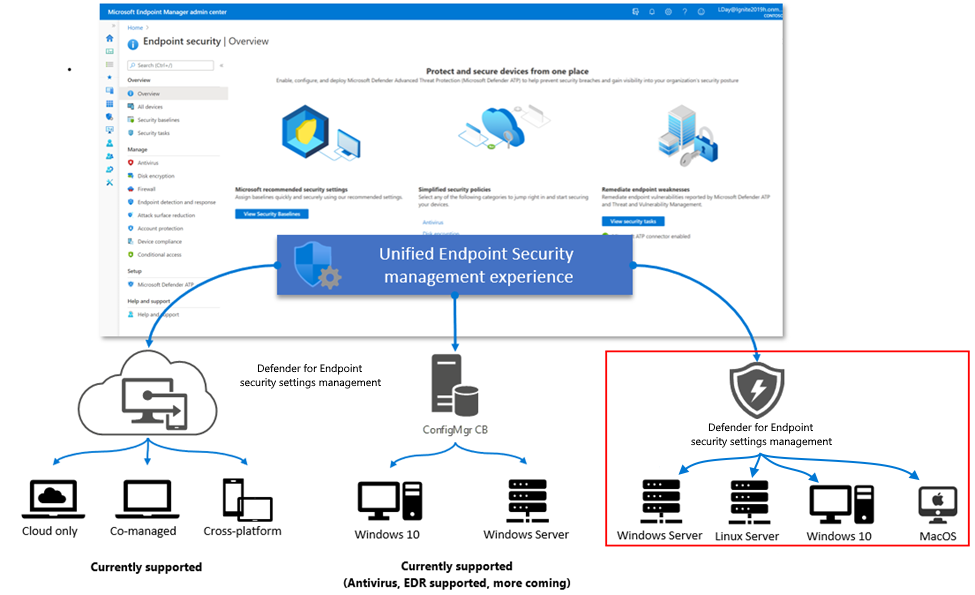
The other genuinely useful capability is security settings management for Microsoft Defender for Endpoint. This lets Intune endpoint security policies reach Windows devices that are onboarded to Defender but not fully enrolled in Intune. In the real world that helps with servers, acquisition estates, transition projects, and those environments where full MDM is still six meetings away. Those devices show up in Intune with Microsoft Defender for Endpoint as the management authority, which is your clue that you’re looking at a limited security management channel, not full device management. You can manage a subset of security settings. You cannot suddenly push apps, certificates, Wi-Fi, and all the other things people assume “managed” means.
The reporting overlap is also much better than it used to be. Defender answers the question, “Why should I care about this device?” Intune answers, “Did the policy actually land?” In Defender, you can track exposure, affected software, remediation status, and asset criticality. In Intune, you can track security tasks, endpoint security policy Device status and Per setting status, compliance state, and device risk if you’ve enabled the connector. That split is actually healthy. One tells you the risk is real, the other tells you whether your fix had any chance of working.
The reality check
Naturally, there’s a catch. A few, actually. Of course, Microsoft being Microsoft, the minute you start thinking “finally, one pane of glass”, a different GUID appears and ruins your afternoon.
The first catch is scope. Defender Asset management sees more than Intune because Defender can represent onboarded devices and discovered assets that were never enrolled in MDM. Intune is much stricter about what counts as a managed device. So the device totals will not match, and that’s normal. In my experience if you try to reconcile those numbers line by line, your going to hate yourself by about device 17. App inventories are similar. Intune’s discovered apps is MDM-centric. Defender’s software inventory is sensor-centric and usually richer.
The second catch is identity. The same laptop can have an Intune managedDevice.id, an Entra deviceId, an Entra object ID, and a Defender DeviceId. They are not the same thing. The common bridge is usually the Entra device ID, shown as AzureADDeviceId in Intune and AadDeviceId in Defender advanced hunting. If you compare the wrong IDs, it looks like data is missing when it really isnt.
The third catch is the big one for patching. Not every Defender recommendation becomes a neat Intune policy. Configuration recommendations map well. Software vulnerabilities, like an outdated Microsoft Edge build, do not magically become a one-click patch job. Defender can raise the task, keep the evidence, and point the right team at it. Intune still needs an actual app or update process. So if your technician is hoping to stay in one portal for the whole Edge remediation story, the answer today is mostly no. Defender is where you identify and validate. Intune is where you configure and deploy. Sometimes a third tool still joins the party because apparently two portals weren’t enough.
There’s also a people/process limitation that doesn’t get enough airtime. Security tasks are not a full technician assignment system. They are shared, trackable work items. They are not “assigned to Dave in second line support” unless you build that process yourself with RBAC, ticketing, or plain old team discipline.
How to actually use it
Here’s the practical version, because the docs tend to assume “integrated” means “obvious”.
1. Turn on the connector properly
In the Intune admin centre at https://intune.microsoft.com, go to:
Tenant administration > Connectors and tokens > Microsoft Defender for Endpoint
Enable the connector, then turn on the options that match your use case. The usual ones are:
- Compliance policy evaluation if you want Defender machine risk available in Intune compliance policies
- Allow Microsoft Defender for Endpoint to enforce Endpoint Security Configurations if you plan to use security settings management for non-enrolled devices
The blade is fairly plain. You’ll see connection state and a few toggles. If one of the options is missing, don’t assume the portal is broken. Check licensing and role permissions first.
Then switch to the Defender portal at https://security.microsoft.com and go to:
Settings > Endpoints > Advanced features
Make sure the Intune connection and relevant security configuration management features are enabled. If you want MDE to act as the management channel for some devices, also review:
Settings > Endpoints > Configuration management
That’s where you define the enforcement scope. All devices is fine for a lab. In production I prefer a pilot tag first, because optimism is not a deployment strategy.
If you want Defender risk to influence access decisions, create or edit an Intune compliance policy and set the machine risk score requirement. Pair that with Conditional Access if needed. It’s still one of the cleaner integrations across the stack.
2. Onboard the device, or at least verify it’s already onboarded
If the device isn’t already in Defender, use Intune to onboard it. In Intune, go to:
Endpoint security > Endpoint detection and response > Create policy
Choose Windows 10 and later, create the onboarding profile, and assign it to a pilot device group. If you already onboard devices through Configuration Manager, a local script, GPO, or Autopilot, that’s fine too. The important part is that the Defender sensor is healthy and the device is actually reporting.
For devices you want to manage through security settings management rather than full MDM, they still need to be onboarded to Defender first. Intune can then target supported endpoint security policies at them, but the device record will look thinner than a fully enrolled MDM device. That’s expected.
3. Correlate the device IDs before you chase ghosts
This is the bit that saves a lot of time.
From Graph, pull the Intune-side record:
1
2
3
4
Connect-MgGraph -Scopes "DeviceManagementManagedDevices.Read.All","Device.Read.All"

Get-MgDeviceManagementManagedDevice -Filter "deviceName eq 'LON-W11-001'" |
  Select-Object DeviceName,Id,AzureADDeviceId,ManagementAgent,ComplianceState,OperatingSystem
Then in Defender Advanced Hunting, check the same machine:
DeviceInfo
| where DeviceName =~ "LON-W11-001"
| project DeviceName, DeviceId, AadDeviceId, OSPlatform, OSVersion, ExposureLevel, SensorHealthState
If AzureADDeviceId and AadDeviceId match, you’re looking at the same endpoint. Don’t compare Intune Id to Defender DeviceId unless you enjoy false negatives and self-inflicted confusion.
4. Raise the remediation from Defender
Now the interesting bit. In the Defender portal, go to:
Vulnerability management > Recommendations
Open the recommendation you care about. For the software example, it might be Update Microsoft Edge Chromium-based Browser. The right-hand pane will usually show you the exposed device count, software evidence, business impact, and remediation actions.
Choose Request remediation. If the scenario supports Intune handoff, select Microsoft Intune, add a due date, set the priority, and include notes for the endpoint team. Defender will track the activity in the Remediation view.
For configuration-based findings, this flow is pretty decent. The recommendation carries useful context into Intune. For software version findings like Edge, think of this as creating the work item and preserving the evidence, not as creating the final patch deployment.
5. Finish the job in Intune
In Intune, go to:
Endpoint security > Security tasks
Your technician will see a fairly no-nonsense grid with task name, source, due date, affected devices, and status. Functional, not glamorous. If the task maps to a supported security configuration, accept it and choose Remediate. Intune can then help you create a new endpoint security policy, or map the recommendation to an existing one.
This is where Intune works really well for Defender-related controls like AV, firewall, ASR, and EDR settings. It’s also where the limits show up for software patching.
If the recommendation is Edge patching, there usually isn’t a magic “patch Edge now” button that builds the whole deployment for you. Instead, do the Intune work that enables the fix. For example, create a Settings catalogue policy at:
Devices > Windows > Configuration > Create > Windows 10 and later > Settings catalogue
Search for Microsoft Edge Update and make sure the update behaviour allows Edge to stay current. In practice, the setting to look for is Update policy override default. Set it to allow updates. If someone previously pinned Edge to an old build with Target version override, raise it or remove it. Old GPOs and stale ADMX settings are often the real problem here. I ran into that exact thing recently, and the browser version was only the symptom.
To verify the installed version on a device, I usually use:
1
(Get-ItemProperty 'HKLM:\SOFTWARE\Microsoft\Edge\BLBeacon').version
If I’m testing a one-off lab machine and I want to force the issue manually, this is handy too:
1
winget upgrade --id Microsoft.Edge -e --silent
I wouldn’t make winget the enterprise answer unless your environment is built for it, but it’s useful for proving the point. Once the device updates and Defender refreshes its inventory, the recommendation state should change. That last step matters. Intune tells you the policy or change was applied. Defender tells you whether the exposure actually reduced.
Workarounds and tips
My first tip is simple. Use the Entra device ID as your join key whenever you automate or troubleshoot. Pull Intune with Graph, pull Defender with Advanced Hunting or the Defender API, and match on AzureADDeviceId/AadDeviceId. That one habit avoids a silly amount of confusion.
Second, separate configuration drift from software patching in your own head and in your team process. If Defender says a security setting is wrong, Intune security tasks are a very good workflow. If Defender says the software version is old, use your patching stack. That might be Intune app deployment, Windows update policies, Configuration Manager, Autopatch, or a third-party patch catalogue. Defender finds and prioritises the issue. It does not replace app lifecycle management.
Third, don’t treat Intune security tasks as a service desk. They are useful, but they are not technician assignment with proper ownership, approvals, and SLA tracking. If you need that, integrate with the ticketing platform your ops team already uses. Defender and Intune both expose enough context to support that workflow. They just don’t finish it for you.
Finally, line up your prioritisation. Defender Asset management can tag critical devices and show exposure more intelligently than Intune. Use that. Then make sure your Intune groups, filters, and pilot logic reflect the same priorities. Otherwise everything shows up as “urgent”, which is just another way of saying nothing is.
Final verdict
Bottom line: I’d absolutely use the Intune and Defender integration, especially for configuration-based remediation and for estates where not every device is cleanly MDM-enrolled. It closes a real gap between the people who can see exposure and the people who can actually change device state, and that’s been needed for years.
Would I sell it as one portal to rule them all? No chance. For software patching, reporting nuance, and day-to-day technician workflow, you still bounce between Defender and Intune, and sometimes something else joins in for fun. But compared to the old silo approach, this is a massive improvement. If you’re testing it, or you’ve built a cleaner workflow around Edge and TVM, you’ll find my links on the blog. Come say hi.
Sources and further reading
Source request: Quick Blog Post, 2026-03-31.
Microsoft docs move around from time to time, because of course they do, but these are the right starting points: